ClassWiz Color Graph Emulator
for use with ClassPad Math
Compatible Models
fx-CG100 / GRAPH MATH+ / fx-1AU GRAPH
A graphing calculator emulator that is offered as part of ClassPad.net.
Works with ClassPad.net's features and makes courses that use ICT tools easier.
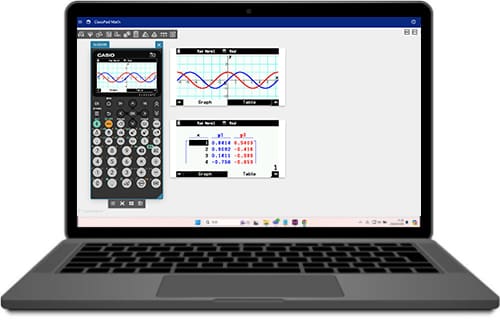
Features

ClassWiz Color Graph Emulator for use with ClassPad Math can be used with various operating systems via an Internet connection.
Allows you to simply and easily show students your screen and what you're doing by projecting it during class, making lessons more streamlined.
Graphs and text can be displayed simultaneously on ClassPad Math, so you can conduct classes with just one window open.
Compatible Models
fx-CG100 / GRAPH MATH+ / fx-1AU GRAPH
How to Activate License
01 Go to ClassPad.net Page.
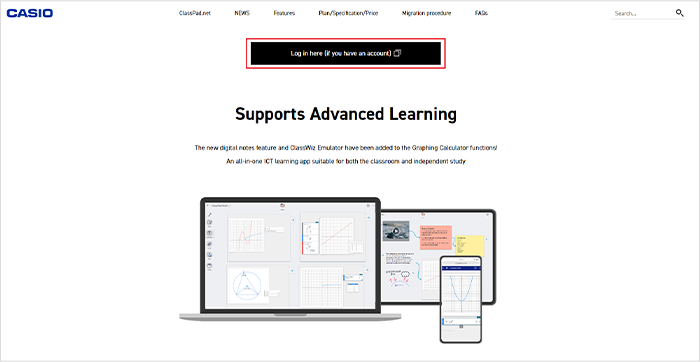
02 Create an account and log in.
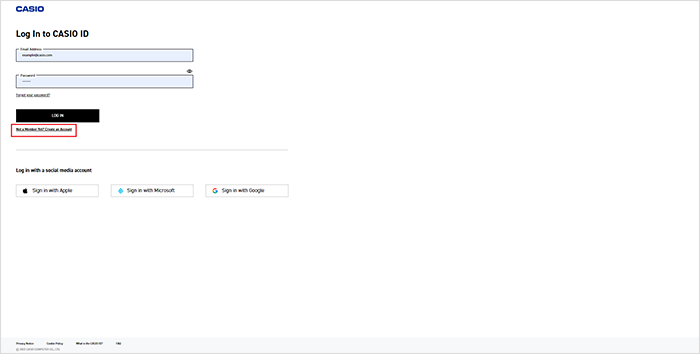
(1) Click “Log in here (if you have an account).”
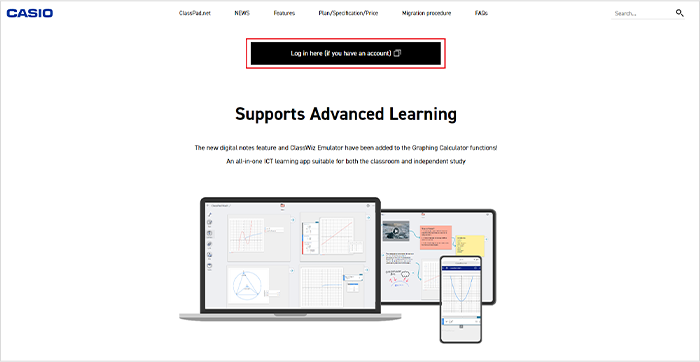
(2) Click “Not A Member Yet? Create an Account.”
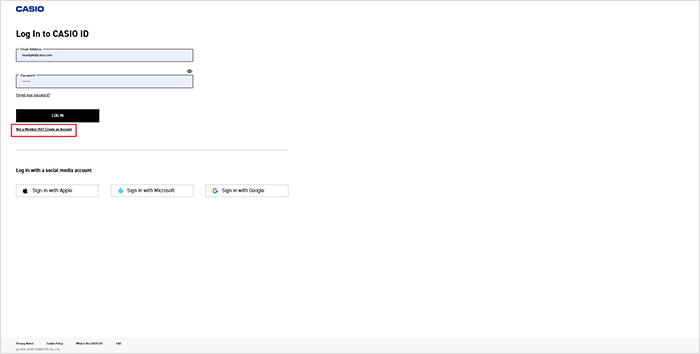
(3) Click “CONTINUE.”

(4) After filling out the necessary items, click “SUBMIT.”
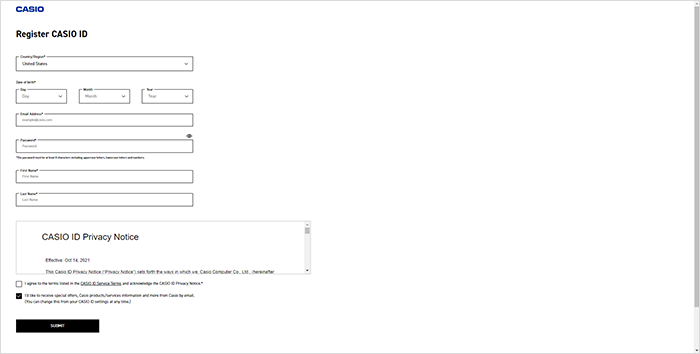
(5) You will receive an authentication code. Follow the on-screen instructions and input the authentication code to complete authentication.
03 After logging in, activate your license from the “Your license” menu.
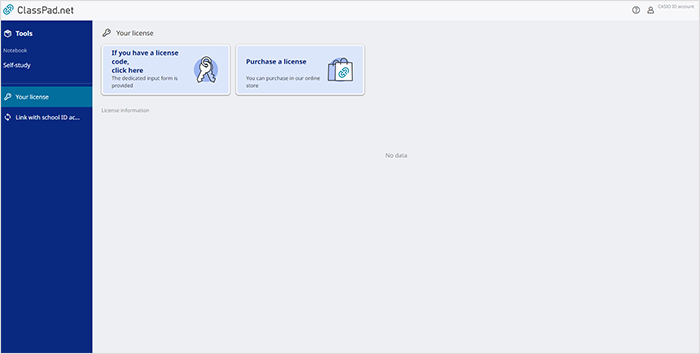
04 Click “If you have a license code, click here.
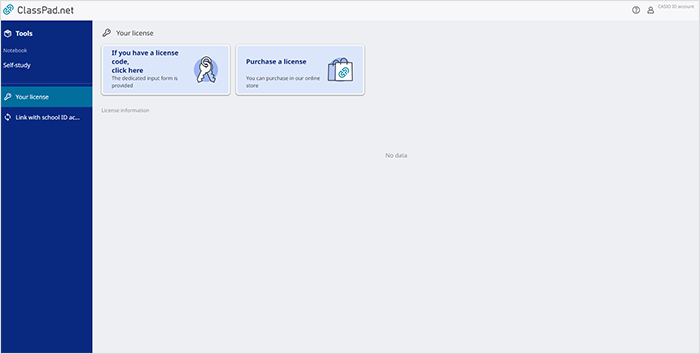
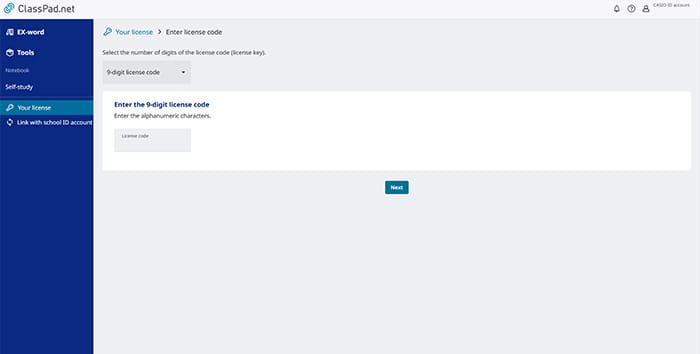
05 Select the number of digits and enter the license code and click "Next.".
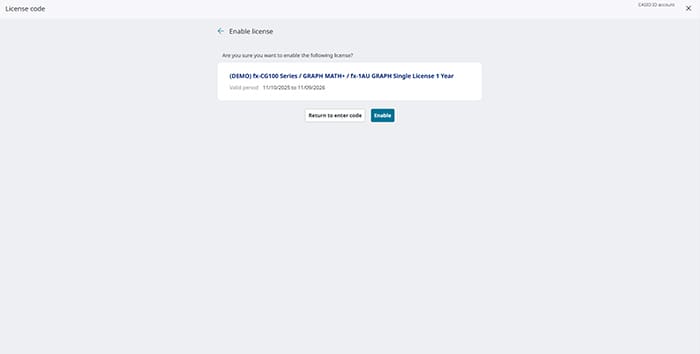
06 Confirm that the license information is accurate and click “Enable.”
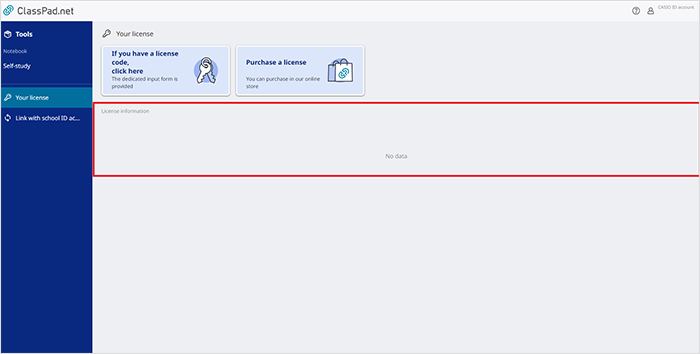
07 If the license information is displayed correctly on the “Your license” menu, the activation is complete.
How to Start Up the Emulator
01 Select Tools.
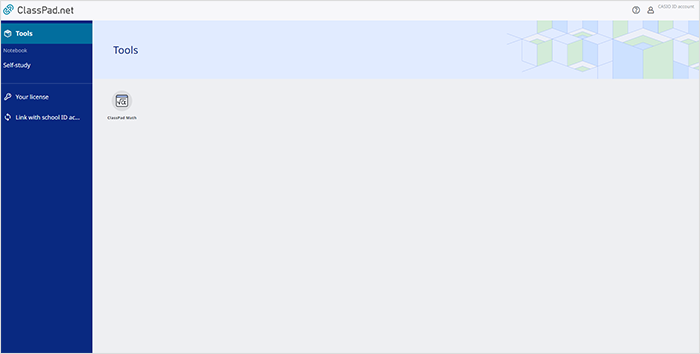
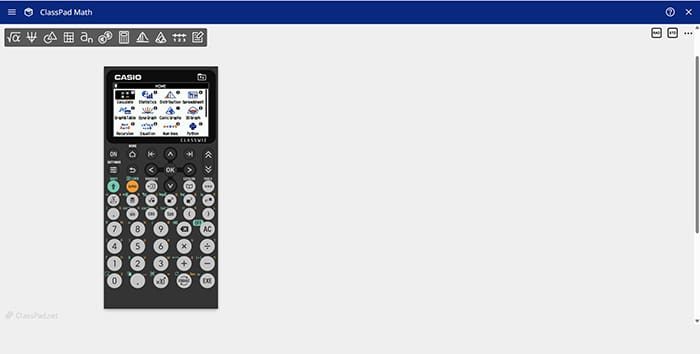
02 Start up ClassPad Math.
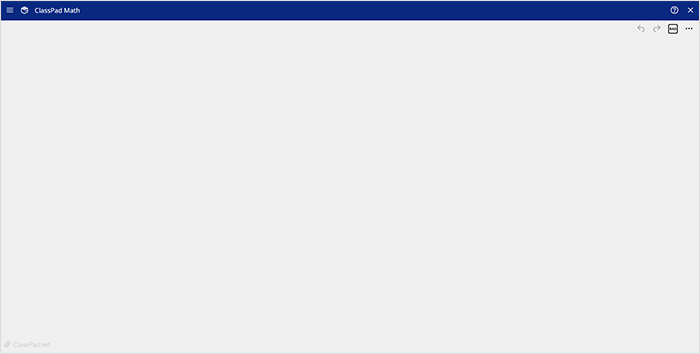
03 Click the ClassPad Math screen to display the menu icons.
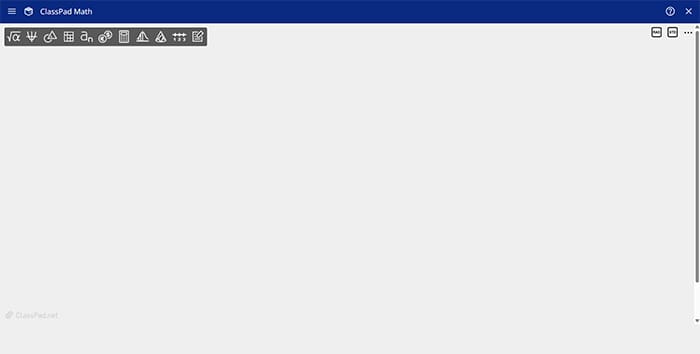
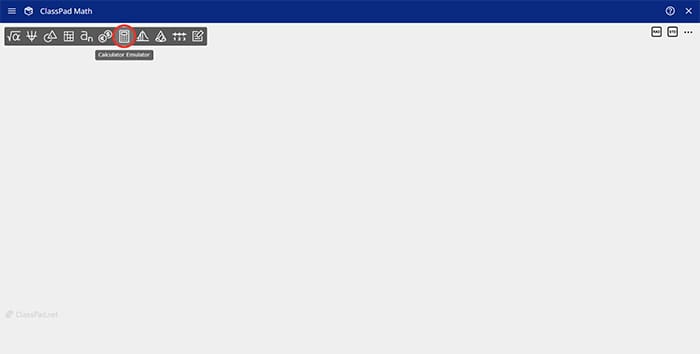
04 Click the Calculator Emulator icon.
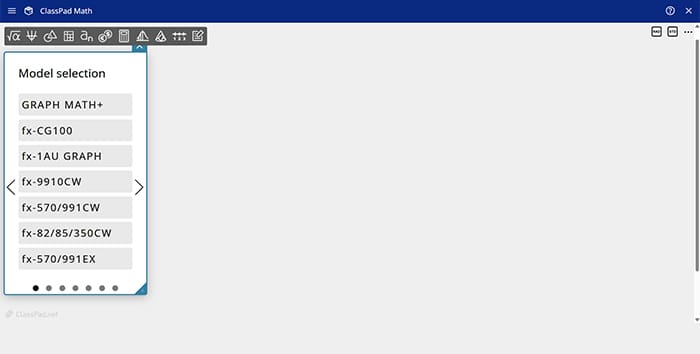
05 Select the model you are going to use (only necessary when using for the first time).
06 Calculator Emulator will start up.
How to Start Up with Notebook Feature
It can also be started up via the Notebook feature in ClassPad.net.
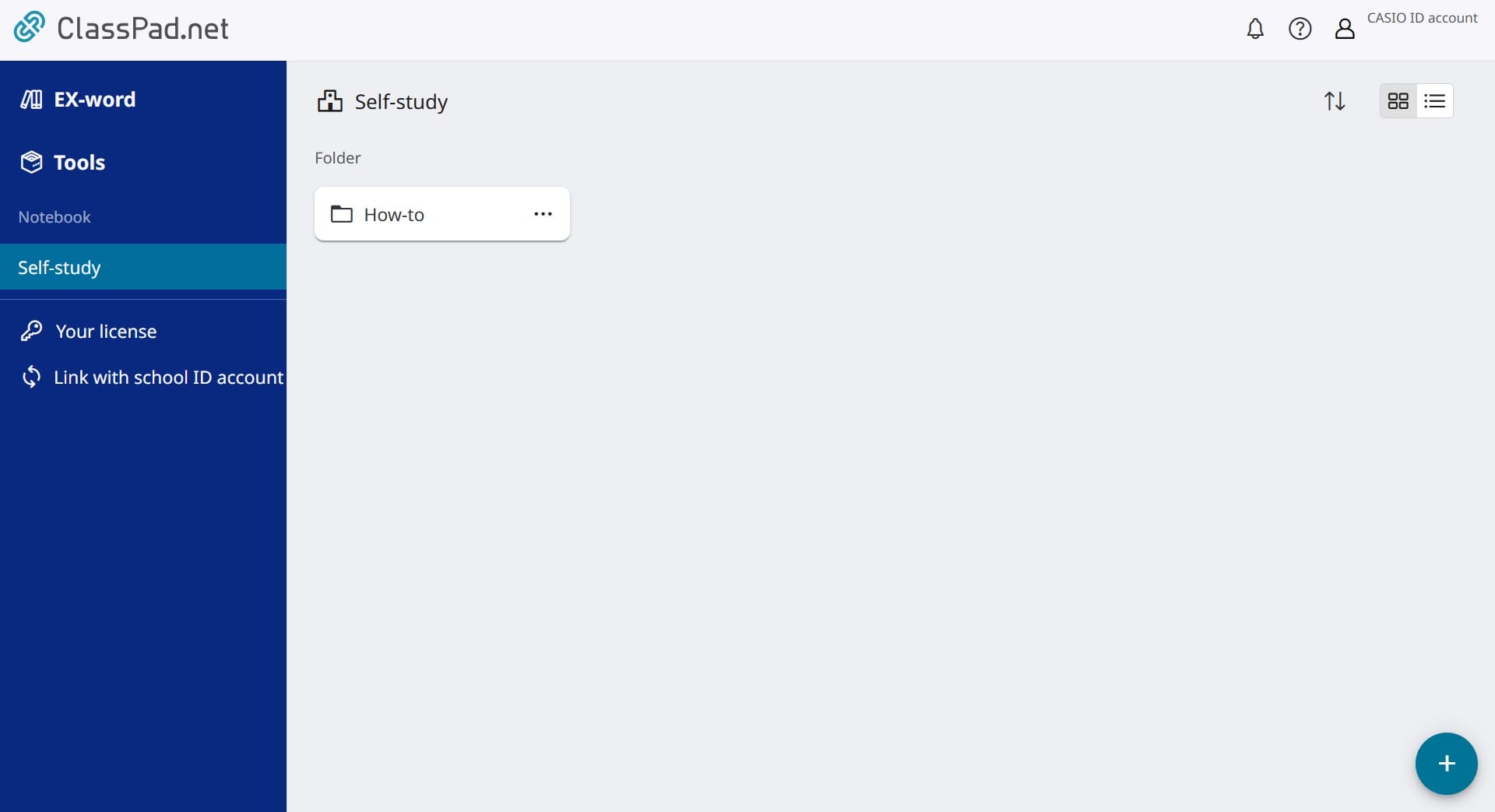
01 Select Self Study under Notebook.
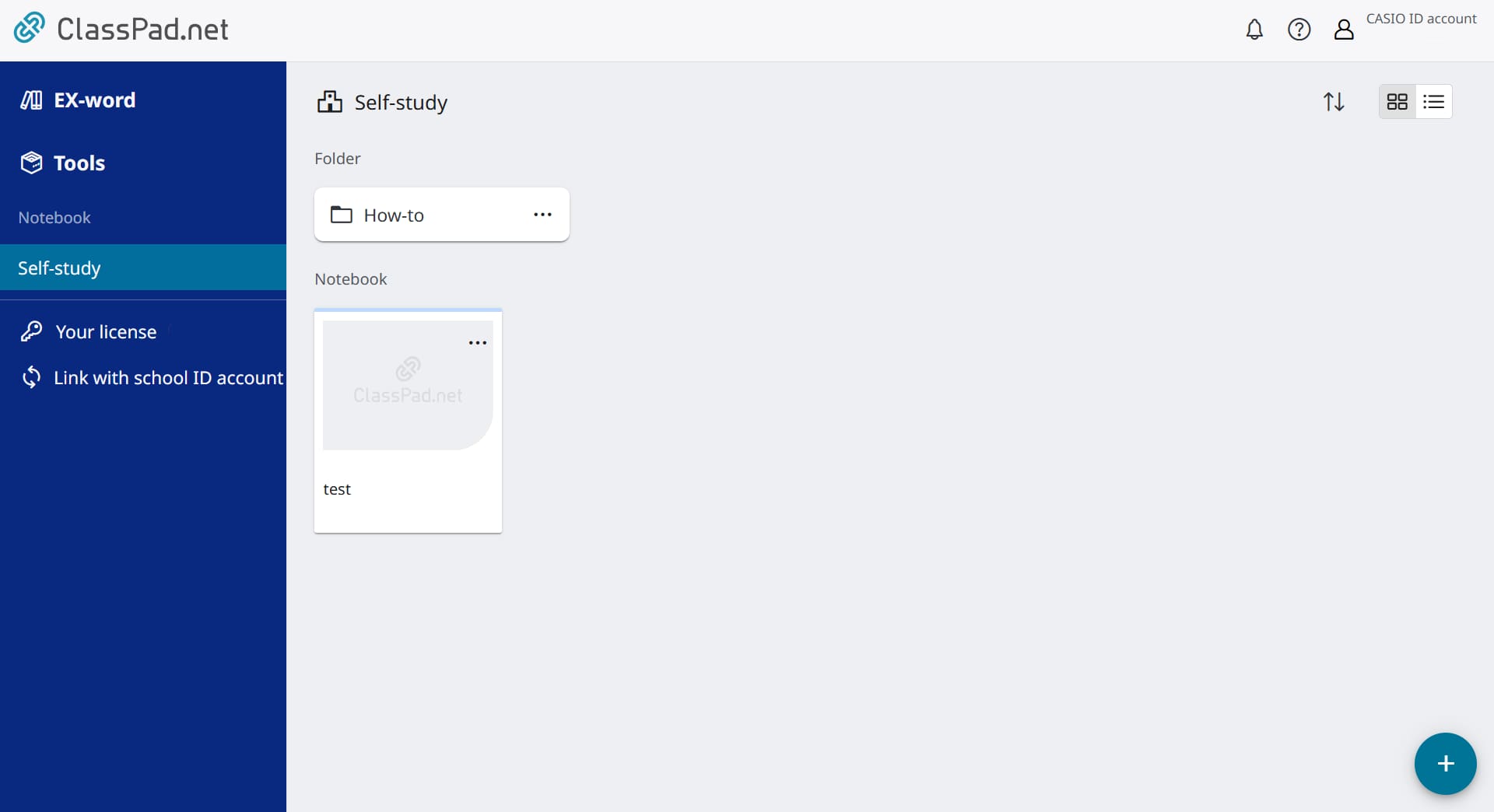
02 Create a new Notebook.
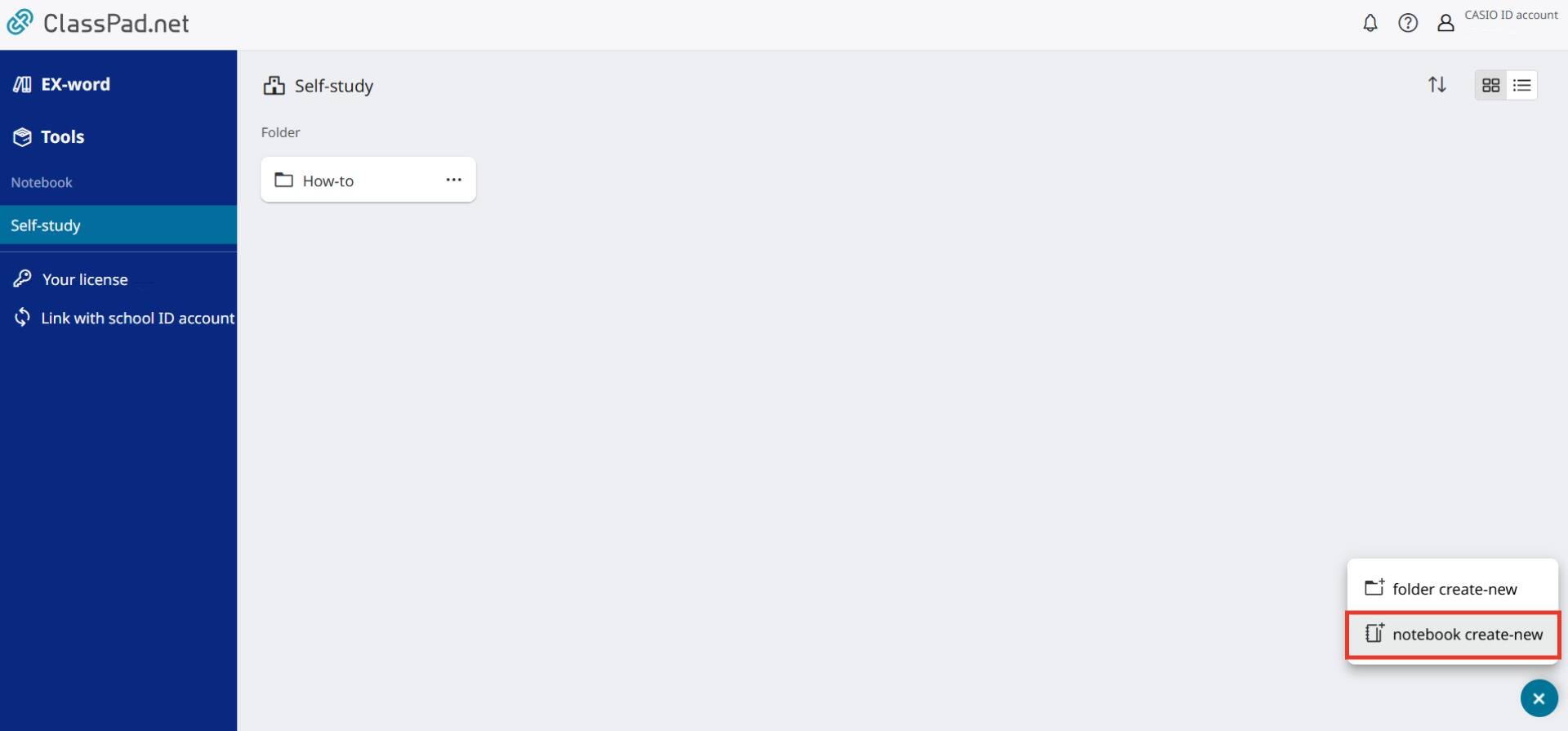
(1) Click the plus button at the bottom-right of the screen.
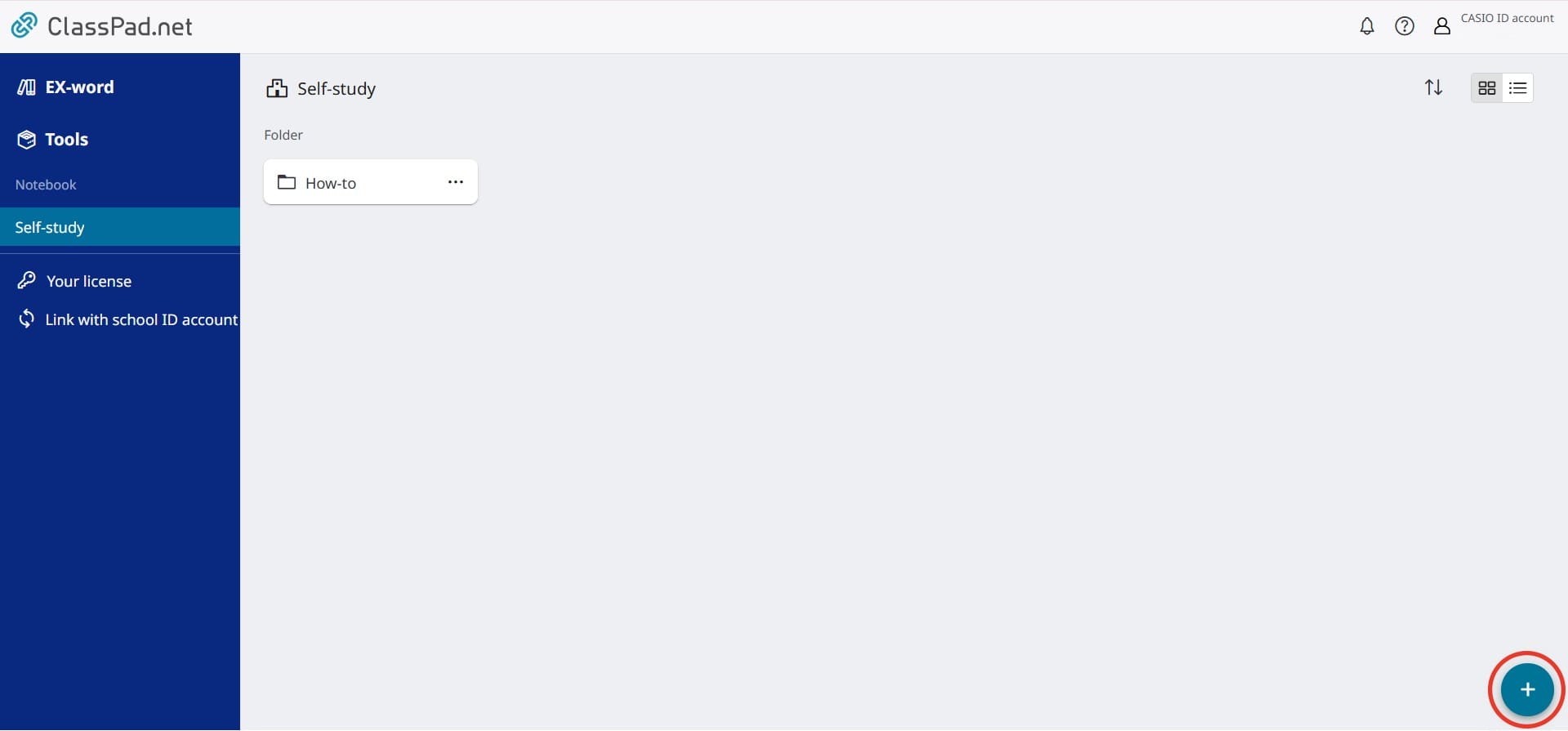
(2) Two icon buttons will appear. Click the icon button for adding a notebook at the bottom.
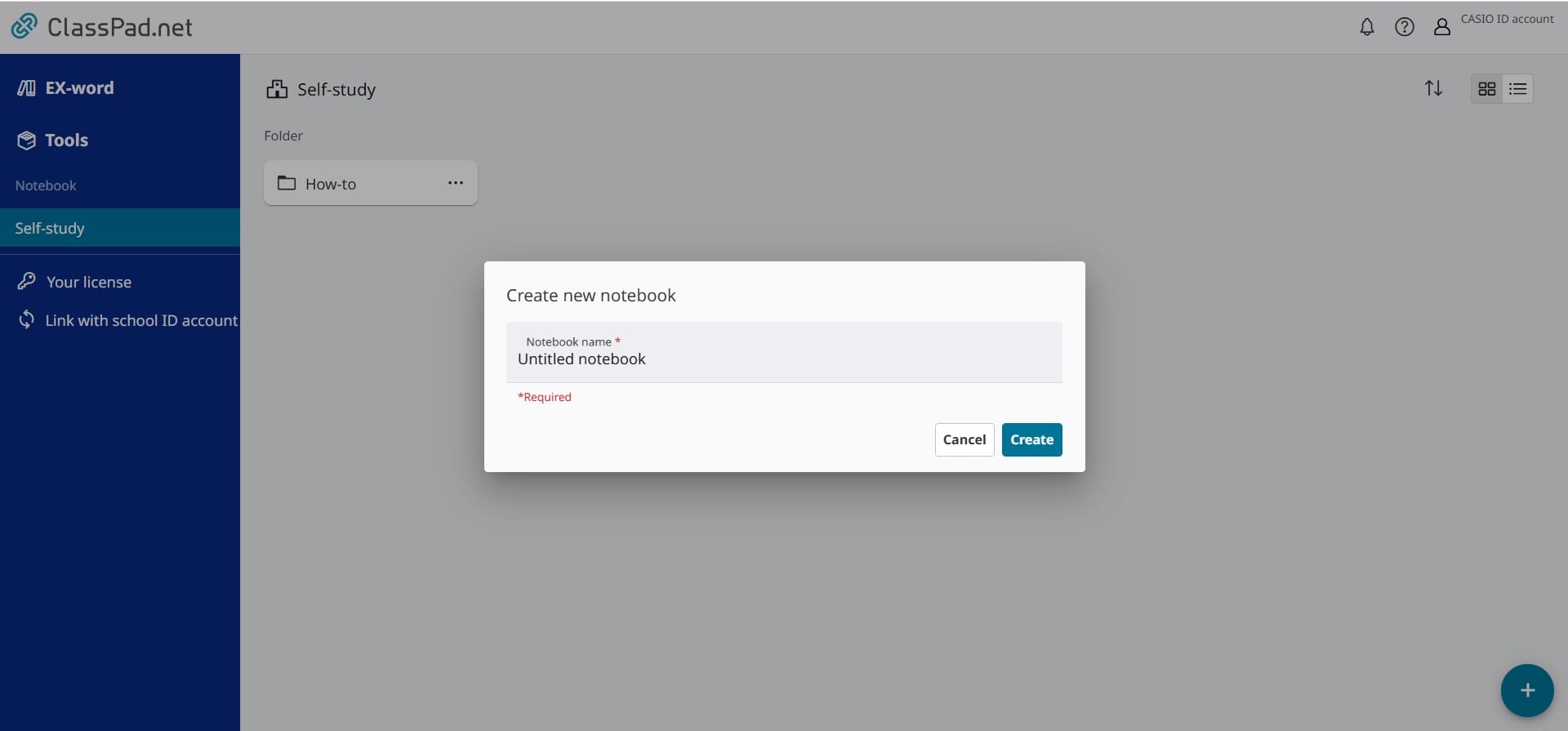
(3) Choose a name for the Notebook.
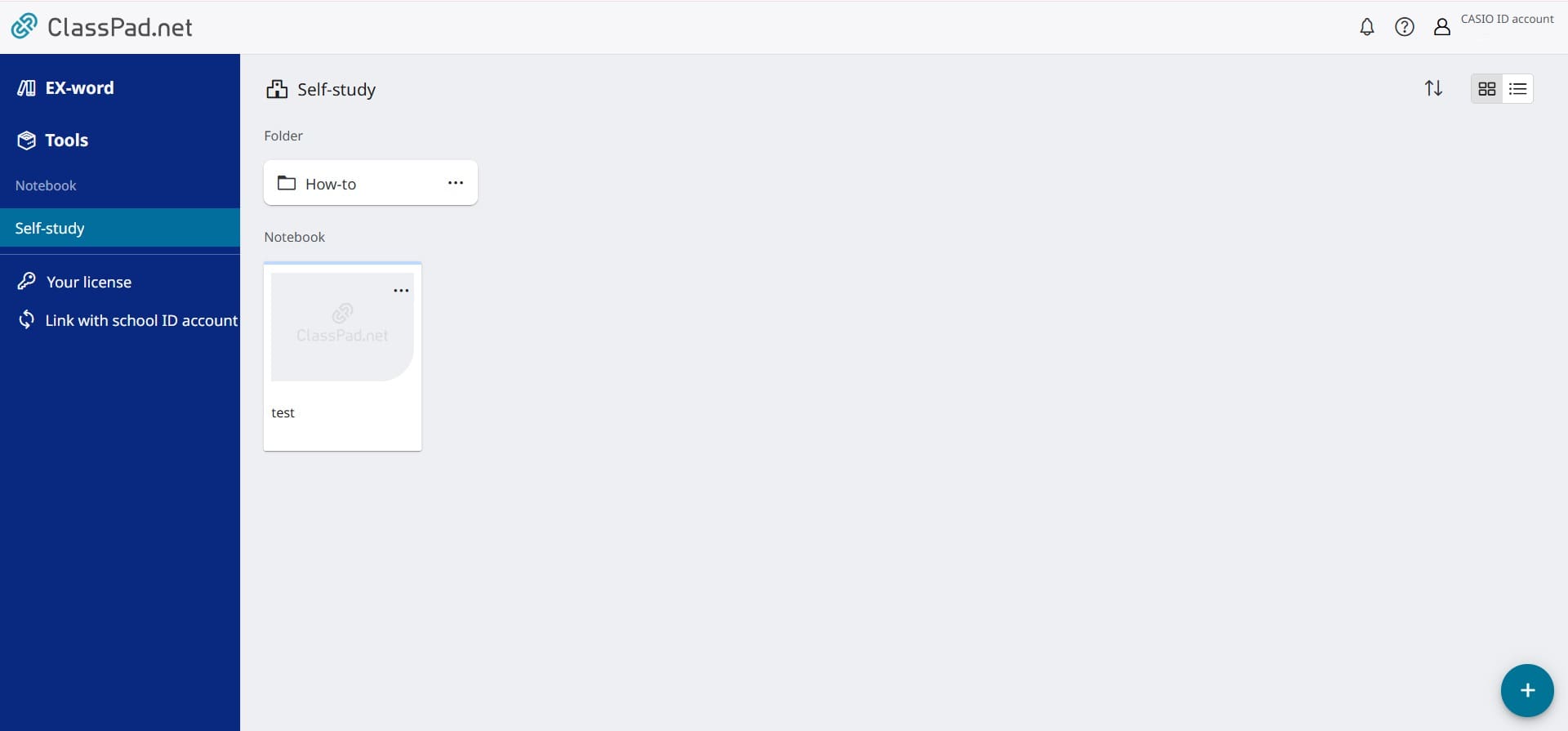
(4) A new Notebook will be created.
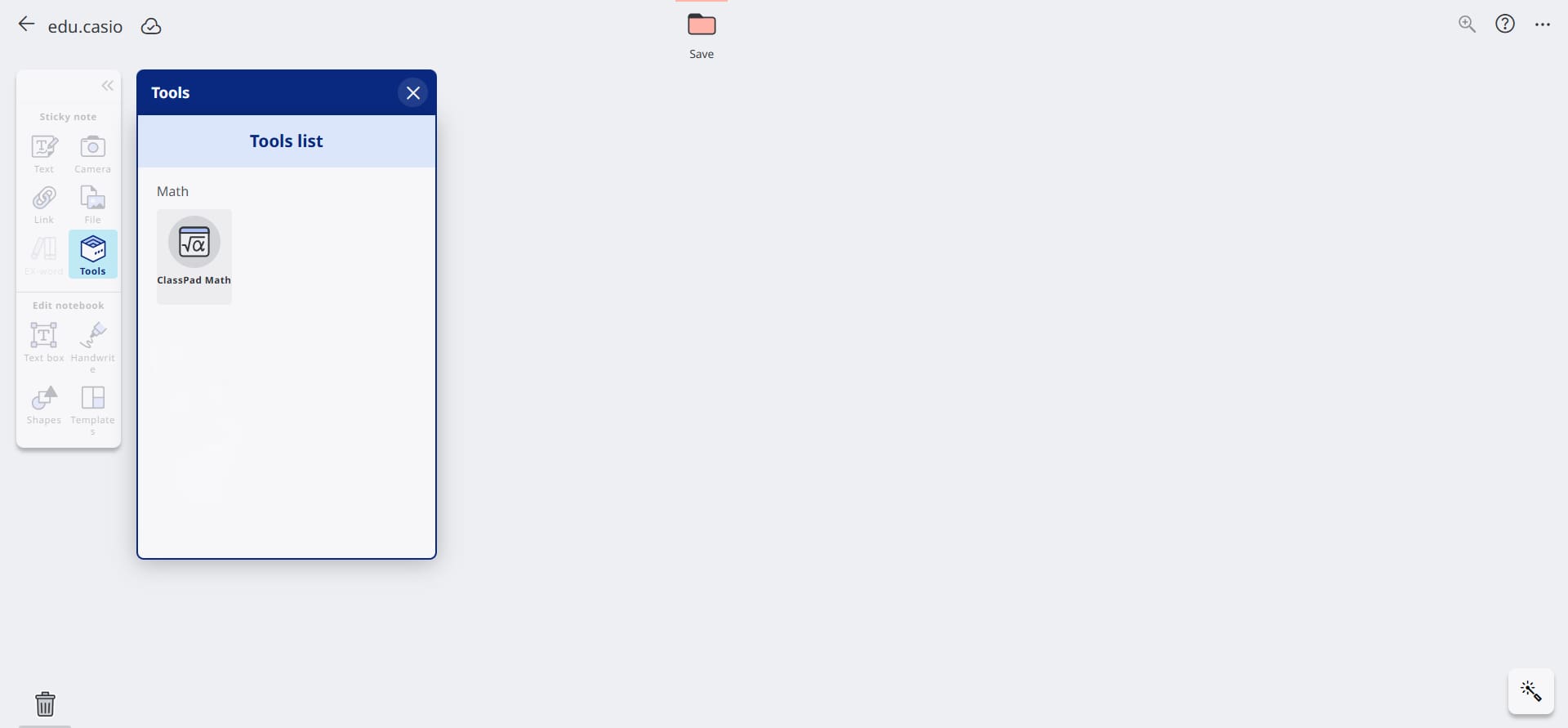
03 Open the Notebook and click "Tools."
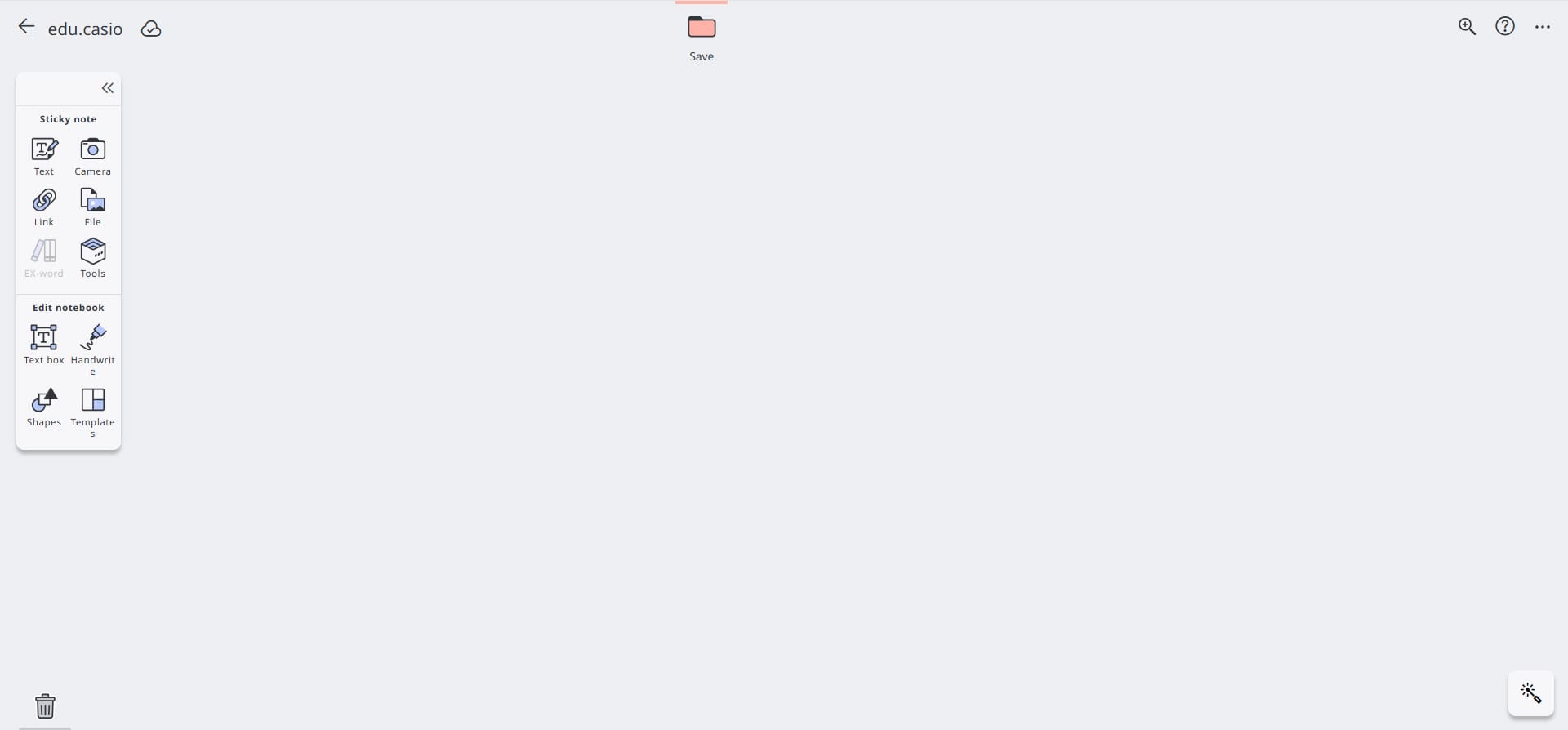
04 From Tools, start up ClassPad Math.
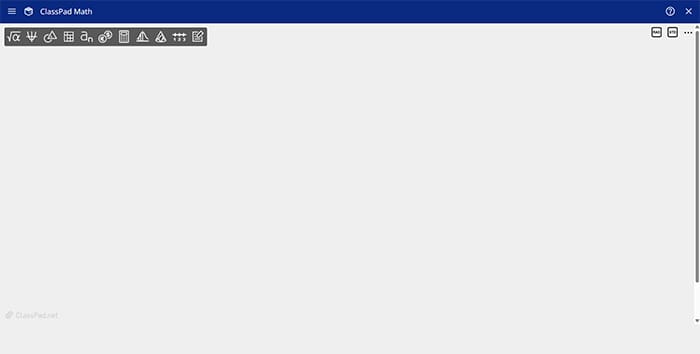
05 Click the ClassPad Math screen to display the menu icons.
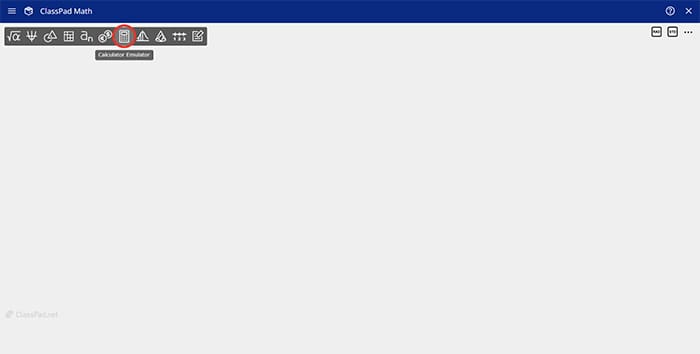
06 Click the Calculator Emulator icon.
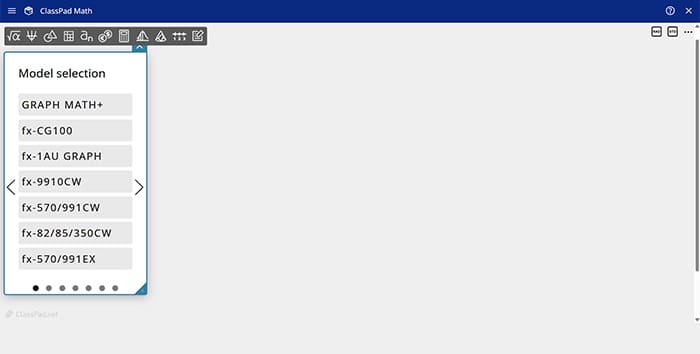
07 Select the model you are going to use (only necessary when using for the first time).
08 Calculator Emulator will start up.
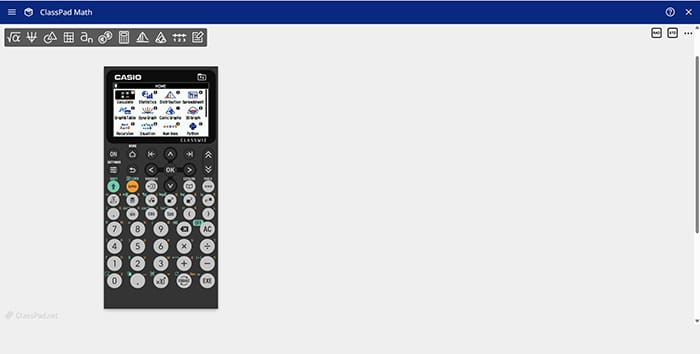
Compatible models
GRAPH MATH+
fx-CG100
fx-1AU GRAPH