How to Activate License

2 Create an account and log in.

If you already have an existing account, please use that to log in.
1Click “Log in here (if you have an account).”

2Click “Not A Member Yet? Create an Account.”

3Click “CONTINUE.”

4After filling out the necessary items, click “SUBMIT.”

5You will receive an authentication code. Follow the on-screen instructions and input the authentication code to complete authentication.

1Select a model.

2Select quantity and duration.

3Add the product to your cart by clicking “Add to Cart”.

4Review your cart contents, and if everything is correct, proceed to "Checkout".

5Enter your payment information and click “PayNow” to complete your purchase.

There are three ways to check your license codes: web page shown after payment, payment confirmation email, and email containing all license codes.
aWeb page shown after payment

bPayment confirmation email


cEmail containing all license codes

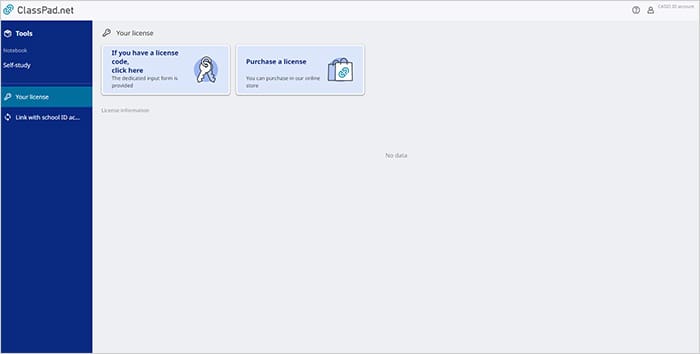
4 Click “If you have a license code, click here.
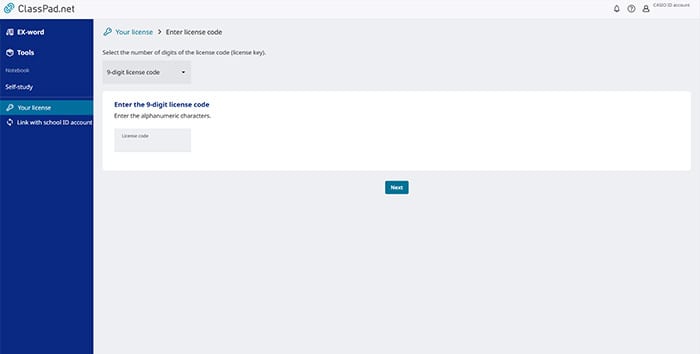
5 Select the number of digits and enter the license code and click "Next.".
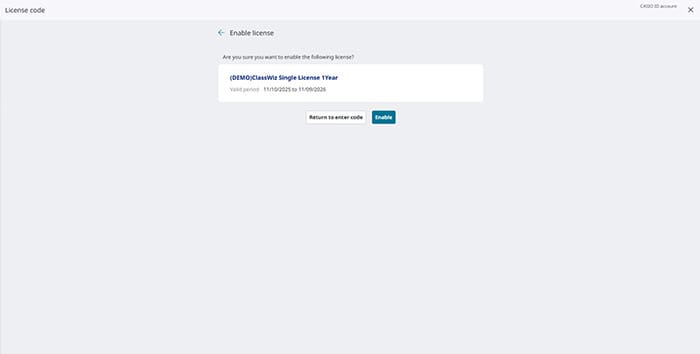
6 Confirm that the license information is accurate and click “Enable.”
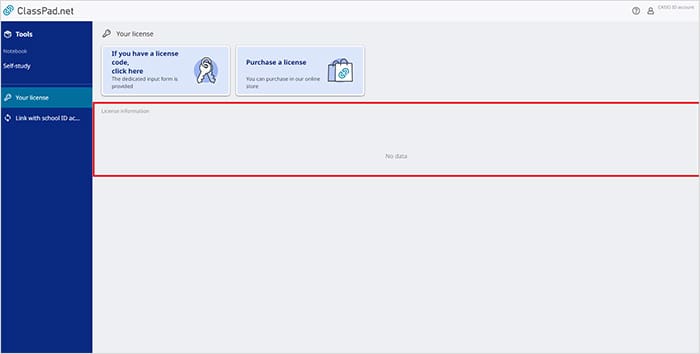
7 If the license information is displayed correctly on the “Your license” menu, the activation is complete.
How to Start Up the Emulator
1 Select Tools.

2 Start up ClassPad Math.

3 Click the ClassPad Math screen to display the menu icons.

4 Click the Calculator Emulator icon.

5 Select the model you are going to use (only necessary when using for the first time).

6 Calculator Emulator will start up.

How to Start Up with Notebook Feature
It can also be started up via the Notebook feature in ClassPad.net.
1 Select Self Study under Notebook.

2 Create a new Notebook.

1Click the plus button at the bottom-right of the screen.

2Two icon buttons will appear. Click the icon button for adding a notebook at the bottom.

3Choose a name for the Notebook.

4A new Notebook will be created.

3 Open the Notebook and click "Tools."

4 From Tools, start up ClassPad Math.

5 Click the ClassPad Math screen (Paper) to display the Sticky Note (feature) menu.
6 Click the Calculator Emulator icon.
7 Select the model you are going to use (only necessary when using for the first time).
8 Calculator Emulator will start up.